
Connecting to the Swiss AI Research Platform#
The course environment includes an optional AI-based Course Tutor chat in JupyterLab. It can read the selected notebook cell and its output to help you understand an error or interactively explain details about the contained code. This chat might be more useful than a general-purpose AI chat, because it knows about the course material and computational environment.
The tutor uses a model hosted by the Swiss AI Research Platform. To enable it, follow these steps. They are the same on your own computer and on the RRP.
1. Obtain an API key from the Swiss AI Research Platform#
Navigate to the Swiss AI Research Platform: https://serving.swissai.svc.cscs.ch/
Sign in with your ETH Zurich account. Open API Keys and copy your key: it should look something like
sk-...
2. Set the API key in your environment#
In JupyterLab:
Open Settings → Jupyternaut settings.
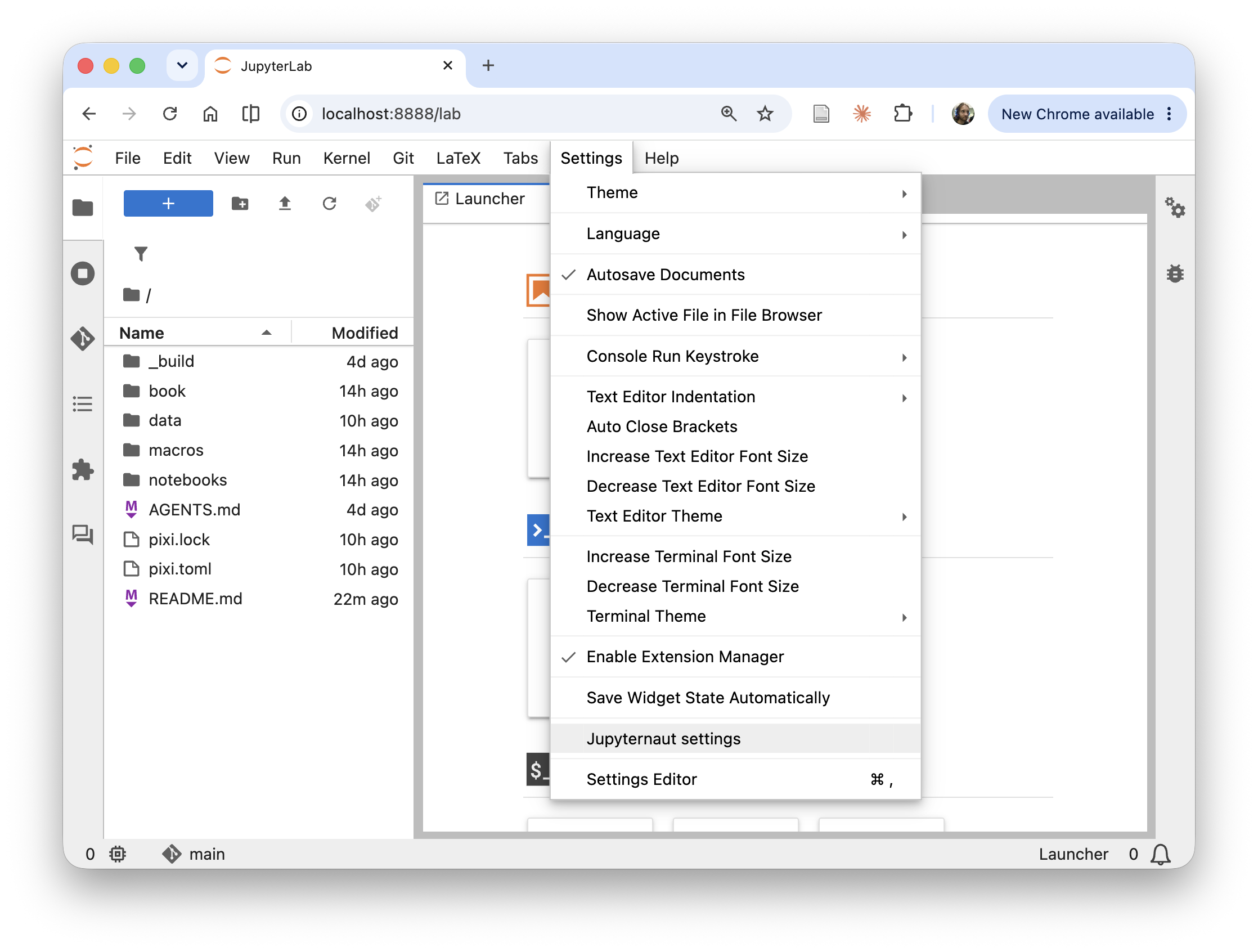
Choose Add secret. Set the name to
OPENAI_API_KEYand paste the key as its value.
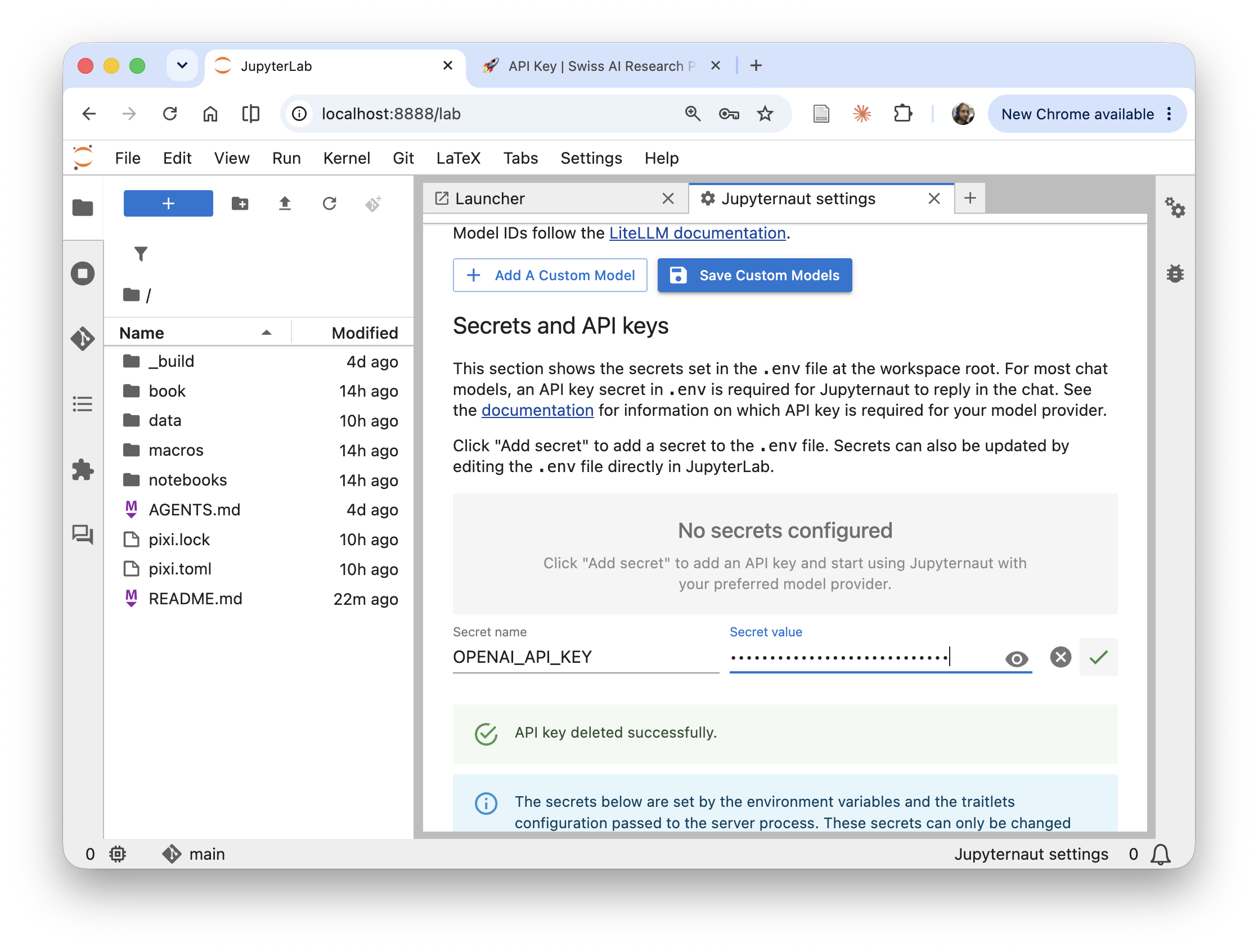
Close the settings tab.
Open the chat in the left sidebar and ask a question to check the connection.
Select a code cell in a notebook and press 🎓 in the notebook toolbar. Check that the tutor responds about the selected cell.
The key is stored in a file .env in the course folder, so you only need to
enter it once.